DEC MEDIA
How to Check Your UDID
Follow the real screenshots below in order, from CHECK UDID to UDID FOUND.
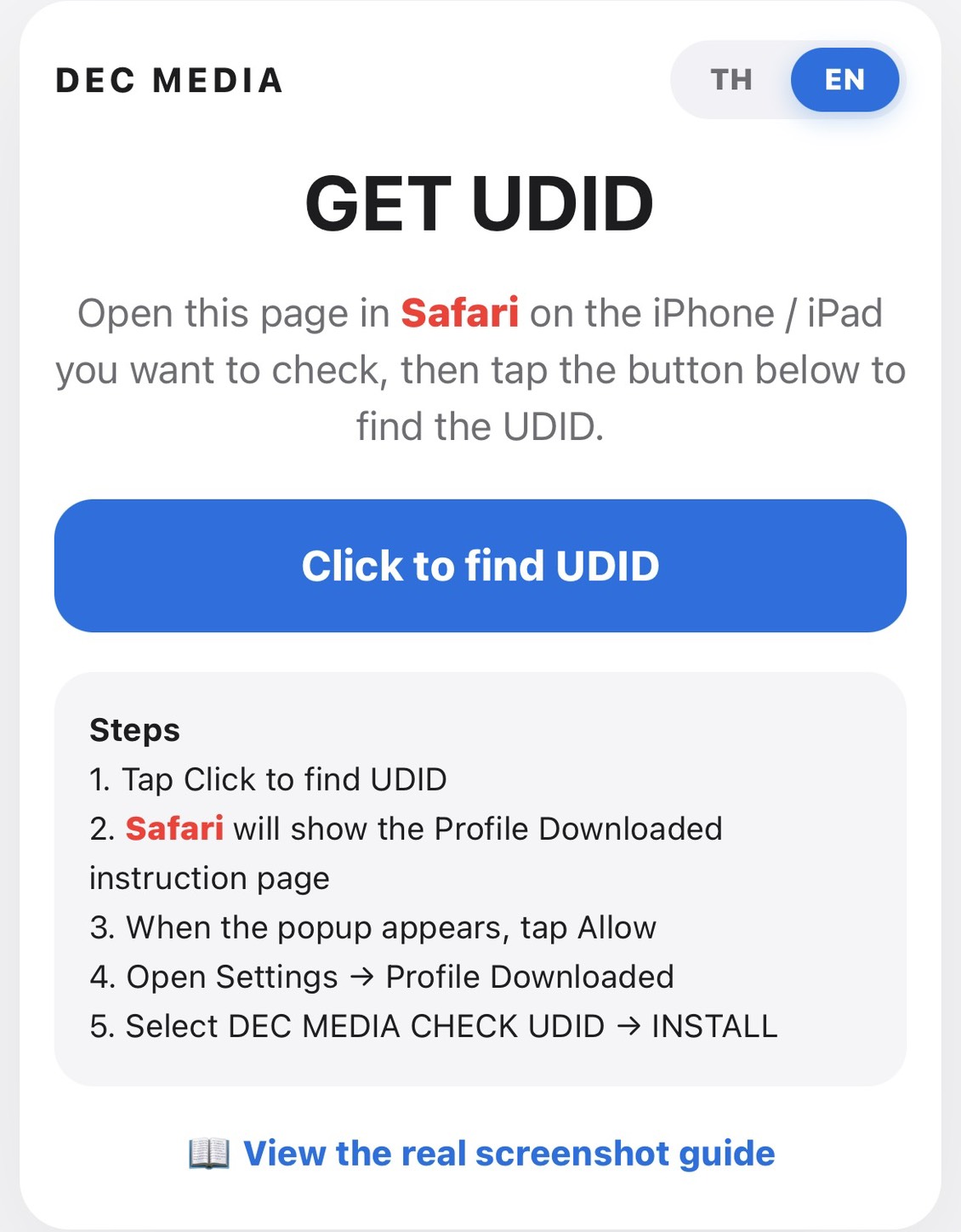
1
Tap Click to find UDID
On the first page, tap Click to find UDID.
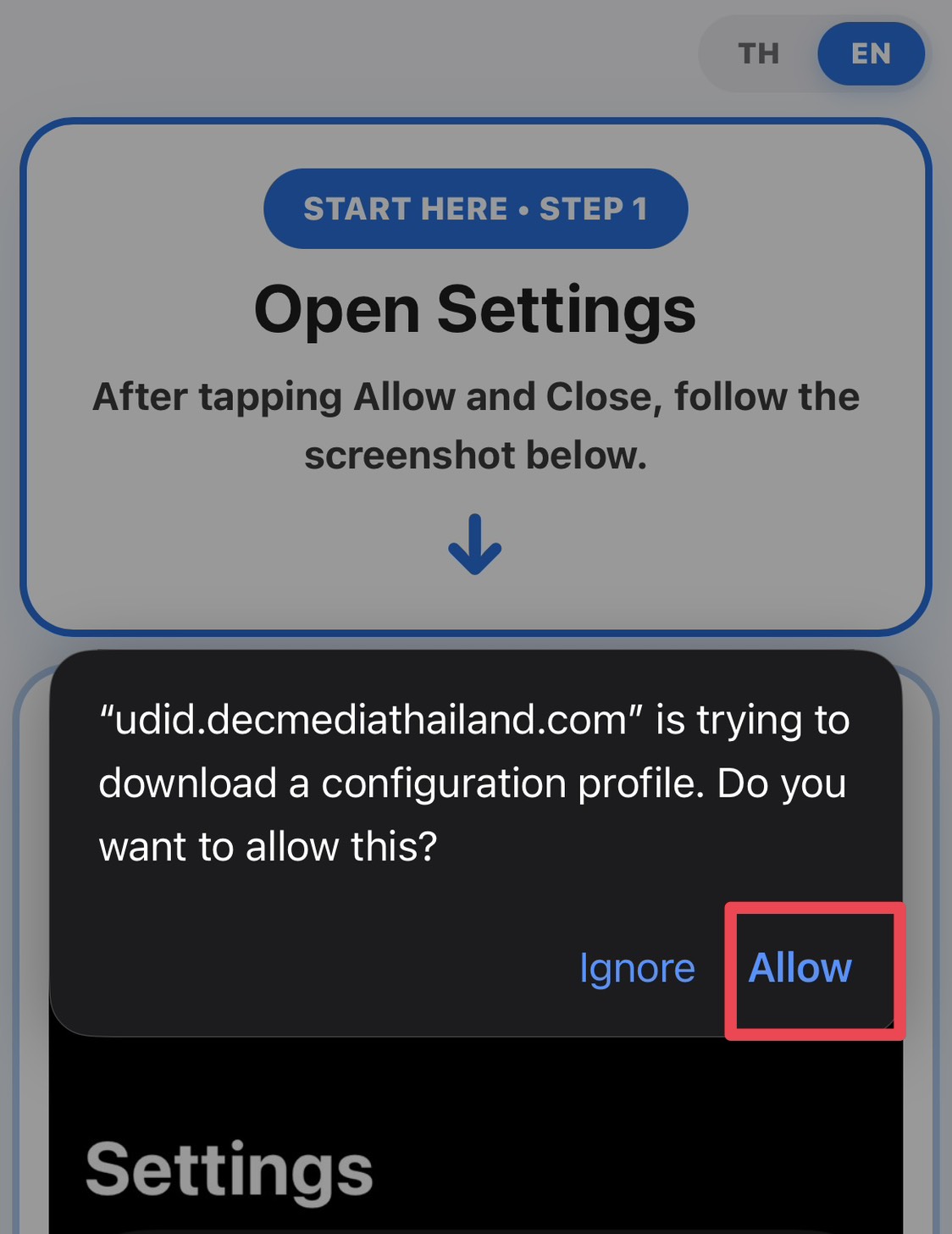
2
Tap Allow
When Safari asks to download a configuration profile, tap Allow.
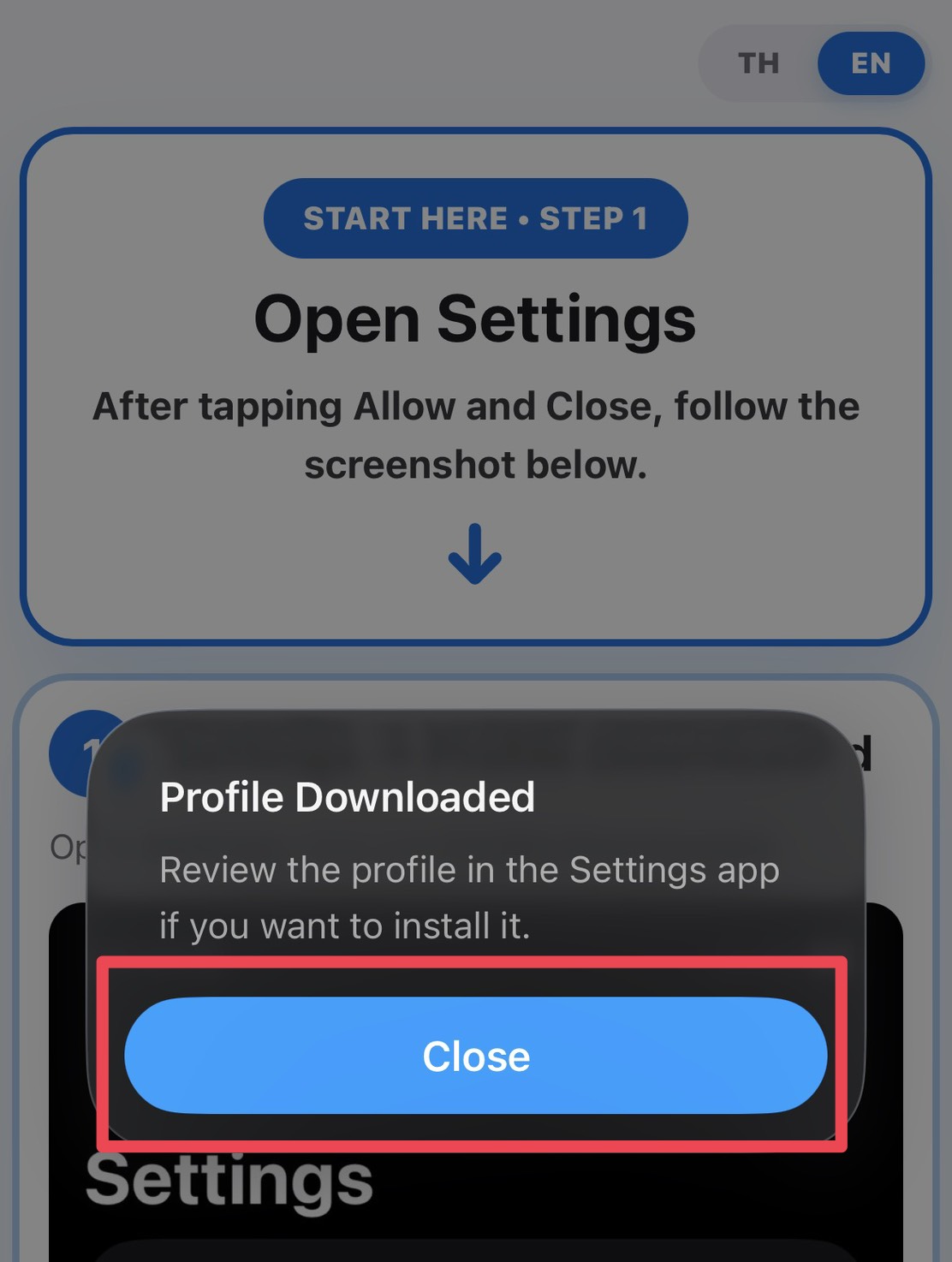
3
Profile Downloaded → Close
When Profile Downloaded appears, tap Close.
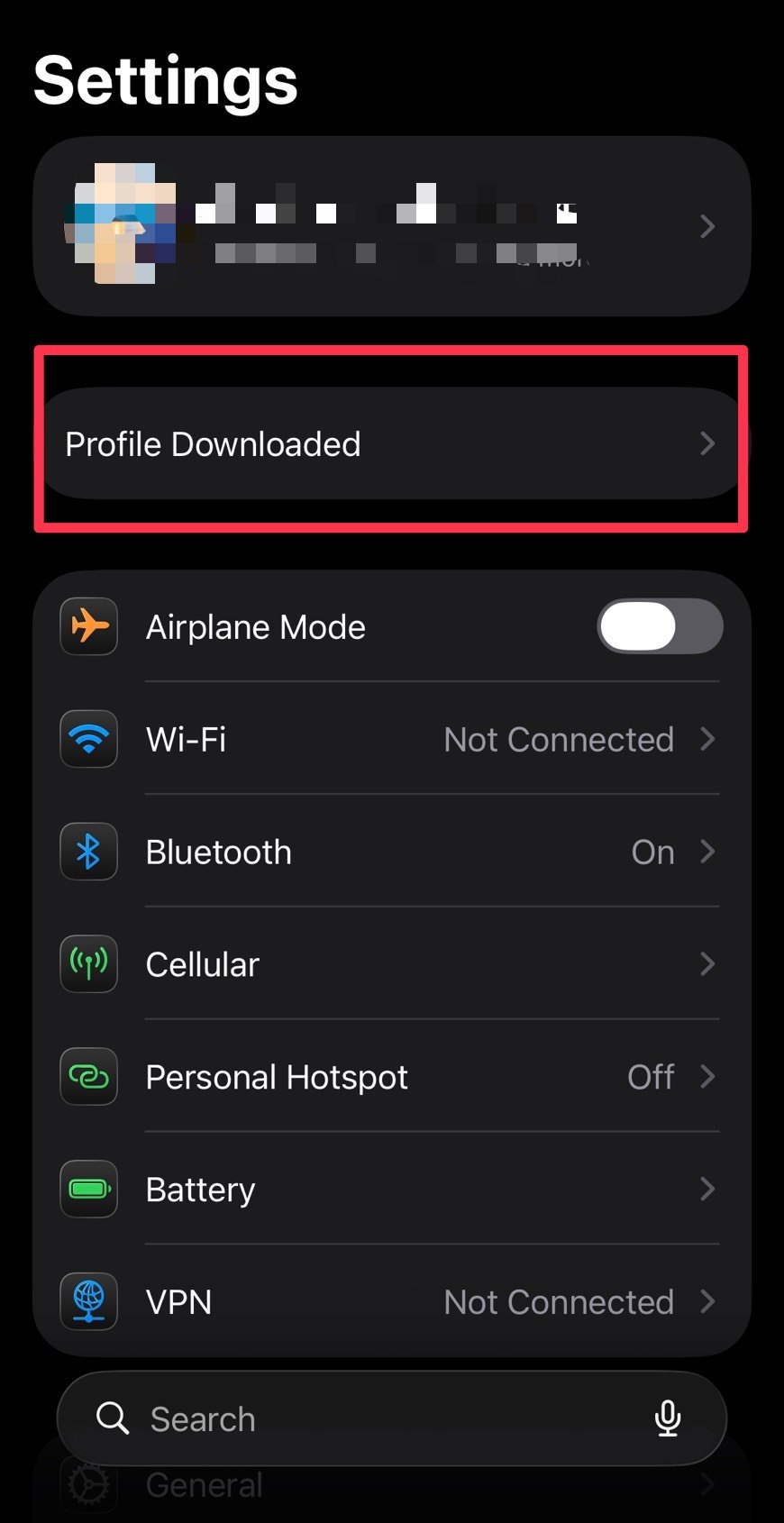
4
Settings → Profile Downloaded
Open Settings, then tap Profile Downloaded.
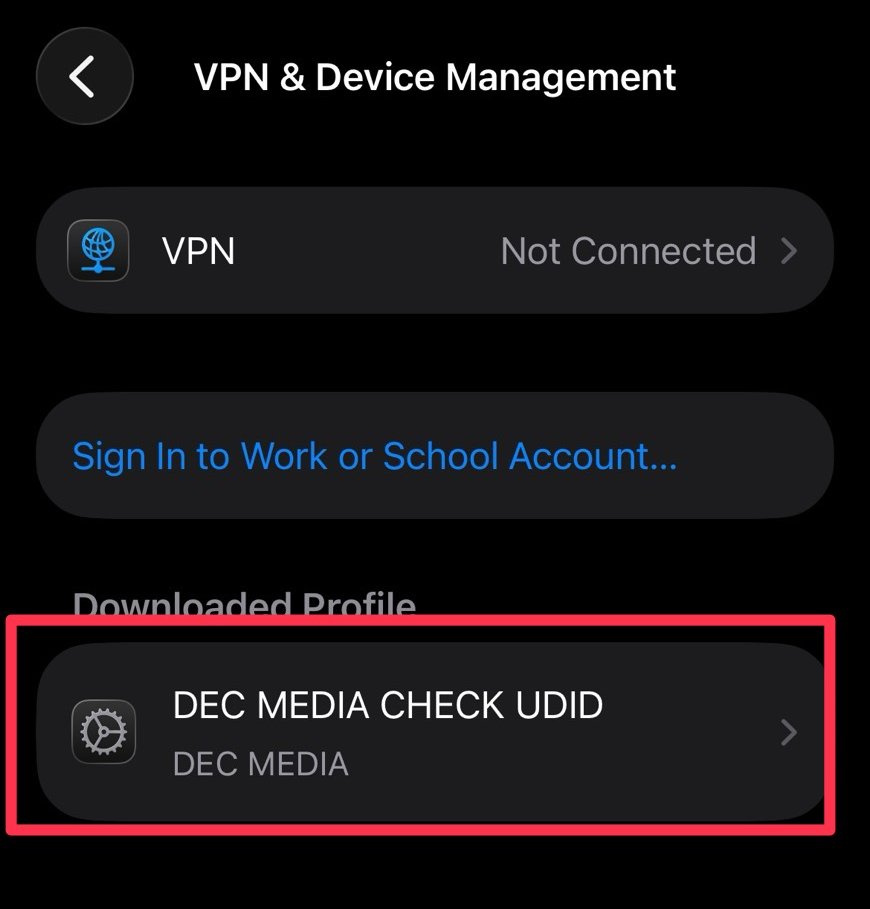
5
DEC MEDIA CHECK UDID
Select DEC MEDIA CHECK UDID.
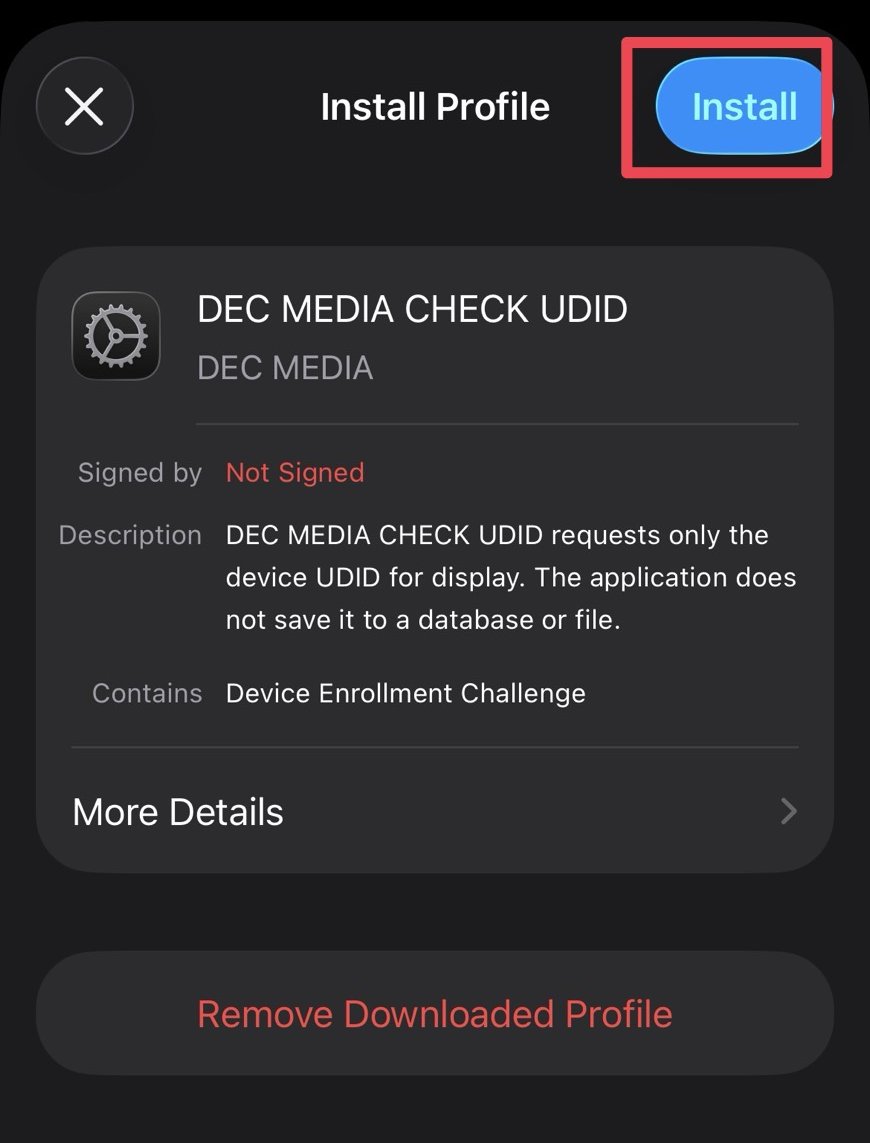
6
Tap Install
On the Install Profile screen, tap Install in the top-right corner.
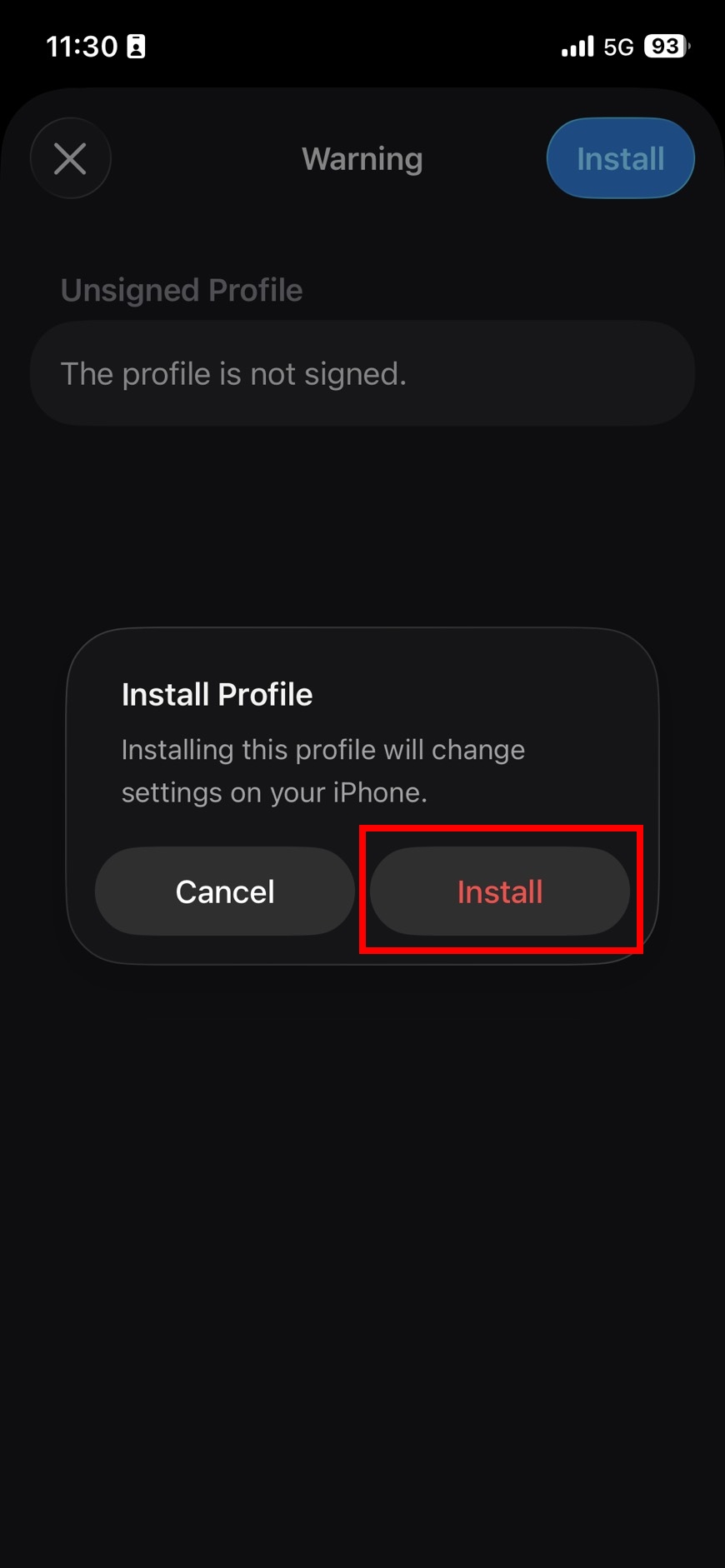
7
Confirm Install
When the confirmation dialog appears, tap Install again.
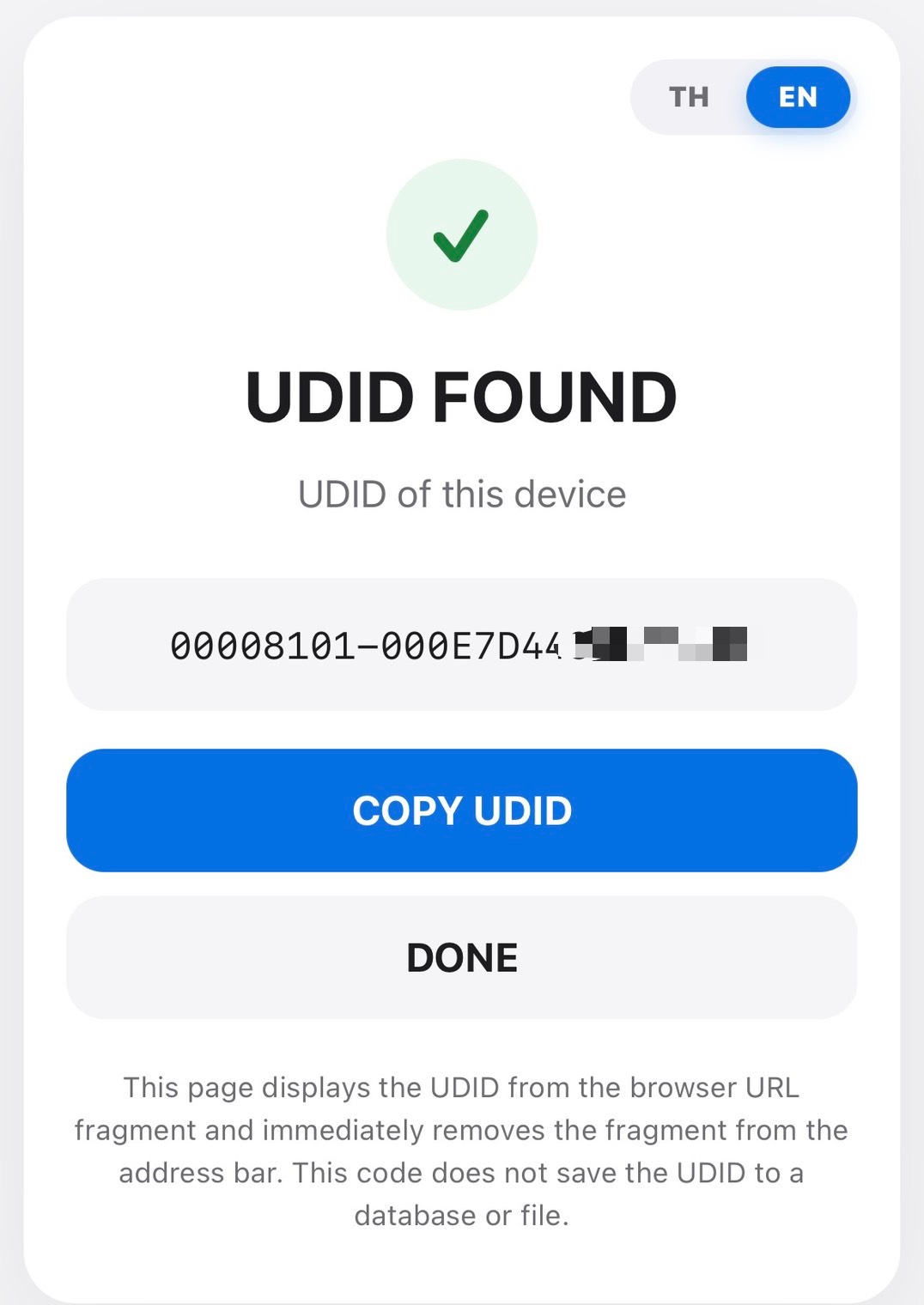
8
UDID FOUND
After installation, your UDID will appear in the browser. Tap COPY UDID to copy it.
If Profile Downloaded is not shown in Settings, go to
Settings → General → VPN & Device Management,
then select DEC MEDIA CHECK UDID.